Wednesday, September 17, 2014

Crystal reports runtime for .NET 4.0

---

Crystal reports runtime for .NET 4.0

Filed under: Developmentdotnetmag — Tags:  — koenwillemse @ 00:00
A few years ago I created an application which is used by an tutoring institute. It’s not the best application I’ve ever created (and that’s a bit of an understatement), but it works. There are some bugs now and then, some new feature request, which I do when I’ve got some spare time. One part of the application is generating invoices. I used Crystal reports to generate the invoices (first version in VS 2005, later in VS 2008).
A while ago I upgraded my solution to Visual Studio 2010 and then the problems began. Crystal Reports is no longer included in Visual Studio but needs to be downloaded separately from SAP site. Problem one, it took a long time before the final version for .NET 4.0 and Visual Studio 2010 was available. I started using the beta version when I upgraded and it worked OK. The problem however was that there was decent no runtime installation available. I found a blog post (unfortunately I don’t have the link anymore) which indicated that you could redirect the newer assemblies to the ‘old’ VS 2008 version runtime. This worked out good for me so I was ok.
In November last year, the production release of Crystal Reports for Visual Studio 2010 was ready. So when I got my new work laptop in December, I installed this last version. But then, last week I fixed a few minor bugs and made a little improvement, and I got in trouble with the deployment which complained about the Crystal Reports references. So I wanted to quickly download the runtime for the newer Crystal Reports version and install it on the client computer. However, that wasn’t done quickly. It took me a while to finally find the links to the redistributables and merge modules of the new runtime. One thing became clear and that was that I really dislike the SAP web site.
I finally found the links, so I wanted to post them here, so maybe some other people don’t have to spend the same amount of time as I had to, to find the installers (with thanks to Coy Yonce):
  • Standard EXE installation package which installs SAP Crystal Reports for Visual Studio into the Visual Studio 2010 IDE can be found here.
  • Click-Once installation package used to create self-updating Windows-based applications which can be installed and run with minimal user interaction can be found here.
  • Merge Modules installation package used to install components which are shared by multiple applications can be found here.
  • Redistributable installation (32 bit) can be found here.
  • Redistributable installation (64 bit) can be found here.
I hope this saves some time for you.
---
source: http://koenwillemse.wordpress.com/2011/02/08/crystal-reports-runtime-for-net-4-0/
---

Crystal Report 2013: How To Produce Executable Report File


Crystal Report 2013 does not install any Software Development Kit. However you have two options:

1) SAP Crystal Reports, developer version for Microsoft Visual Studio 2010 / 2012, which you can download from here: http://scn.sap.com/docs/DOC-7824

2) Keep using the CR 2008 SDK. This SDK fully supports reports created in CR 2013.

Tuesday, September 9, 2014

CRYSTAL REPORT 2013 Summary Information

---
CRYSTAL REPORT 2013 Summary Information

STEPS

1) Start

Run Crystal Report 2013.

2) Summary Information

2-1) Go to Menu Bar. Select File/Summary Info…
2-2) Enter the details.
Author: Arthur
Keyword: customer list report
Comments: This is a customer list report created in Getting Started topic.
Title: Customer List

3) Using Special Field

3-1) In the Field Explorer, look for Report Title.
3-2) Choose Report Title.
Drag the cursor over the report. An object frame appears.
Position the object frame in the upper left-hand corner of the Page Header (PH) section of the report and release the mouse button to place the object.
3-3) Print Preview.

4) Formatting Report Title

4-1) Position the cursor on the right edge of the object until the cursor turns into a Resizing cursor. Drag the right edge of the field box until it is even with the right edge of the data in the Contact Name field object.
4-2) With the report title object still selected, click Align Center on the Formatting toolbar. The title is centered within the object.
4-3) Right-click the object and choose Format Field from the shortcut menu.
4-4) When the Format Editor appears, click the Font tab.
4-5) Set the report title to a larger, bolder version of the active font by selecting Bold from the Style list and 16 (or a point size suitable to the font you are using) from the Size list. Change the color of the text by selecting Maroon from the Color palette. Notice that the Sample box shows an example of how the text will look.
4-6) Outcome.
4-7) Resize Page Header (PH) height.
4-8) Select and move all objects in Page Header downward.
4-9) Increase the height of Report Title Object.
4-10) Print Preview.
---

CRYSTAL REPORT 2013 Combine Field Names In Report

---
Crystal Report 2013 Combine Field Names In Report

STEPS

1) Preparation.

Run Crystal Report 2013.

Instead of adding the Contact First Name and Contact Last Name fields as separate objects, you can insert both fields in a text object. This allows you to control the formatting of both fields by making changes to only one object. When you insert fields in a text object, the fields are automatically trimmed (they do not have any extra white space on either side). This is important because a field is a fixed size but the data in the fields can vary in size, leaving various amounts of unwanted white space.

2) Inserting Text Object Into Detail Section

2-1) Click Insert Text Object on the Insert Tools toolbar.
2-2) As you move the cursor over the report, an object frame appears next to it.
Insert the field to the right of the fields in the Details section.
As you drag the field, the Design tab automatically scrolls to the right, if necessary. When you click to place the object, a text object appears and the horizontal ruler of the Design tab changes to a ruler/tab selector that is used for editing the text object. If you click an empty area of the report or a field object, the standard Design tab ruler appears.

Info:
If you wrongly place the Text Object for your table field into the Page Header section, only the first record item for that page will appear in the Page Header section.

3) Drag Field Name into Text Object

3-1) Drag Contact Last Name into the Text Object.
3-2) Press ESC.

4) Resize Text Object

4-1) Right-Click the Text Object, select Size and Position.
4-2) Enter 2.5 Inches

Info:
If you want to change the Unit Of Measurement to CM, you have to do it through Windows Setting.
4-3) Type a comma and a space.

5) Drag the second Field Name into Text Object

5-1) Drag Contact First Name into the Text Object.
5-2) You may get like this.
5-3) Press Up Arrow Key to view the remaining parts of the Text Object.
5-4) Print Preview your report.

6) Insert Text Object into Page Header (PH)

6-1) Add a Text Object for the Field Header.
Type “Contact Name”.
Apply Underline format.
6-2) Outcome.
6-3) Move to page 2 and page 3 to check the Page Header texts.
---

CRYSTAL REPORT 2013 Getting Started

---
CRYSTAL REPORT 2013 GETTING STARTED

Download sample database extreme.mdb from
or

STEPS

1) Run Crystal Report 2013.

2) In the "Start a New Report" area, click Blank Report.

3) Create New Connection

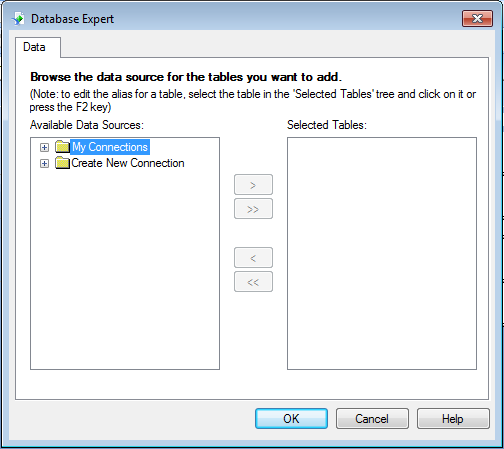
3-1) The Database Expert dialog box appears.
3-2) In the Database Expert dialog box, expand the Create New Connection folder and then expand the Database Files folder; then search for the Xtreme.mdb sample database.
3-3) Database is loaded into the Crystal Report 2013 application.
3-4) Expand the Tables node of the Xtreme.mdb connection to see a list of tables.
3-5) Select Customer and click the > arrow to add it to the Selected Tables list, and then click OK.
3-6) The Design tab of the Report Designer appears.

4) Field Explorer

4-1) Click Field Explorer on the Standard toolbar.
4-2) The Field Explorer dialog box appears.

5) Report Sections

5-1) The Design tab is divided into five sections: Report Header (RH), Page Header (PH), Details (D), Report Footer (RF), and Page Footer (PF).
5-2) Go to Menu Bar. Select File/Options…
5-3) Select Short Section Names.
5-4) Outcome.

6) Inserting Fields

6-1) Expand the Database Fields node in the Field Explorer dialog box and expand a table.
6-2) Right-Click Customer_Name and select Browse Data.
6-3) Outcome.
6-4) Click the Customer Name field and drag it into the Details section of the report.
An object frame appears with the Arrow cursor as you drag the field onto the report.
• The object frame represents the object you have just selected for placement.
• The size of the object frame approximates the size of the data in the field selected.

7) Print Preview

7-1) Go to Menu Bar. Select View/Print Preview.
7-2) Outcome.
Close Preview Tab.

8) Print Format.

8-1) Go to Menu Bar. Select File/Options…
8-2) Deselect Show Field Names.
8-3) Outcome.
The object frame contains Xs to indicate that the database field contains a text string
8-4) Notice that initially the Format Tool Bar is dimmed (not active).
8-5) When you click the field object in Details Section, the Format Tool Bar becomes active.

9) Adding Additional Fields

9-1) Highlight the City field in the Field Explorer dialog box, press the Ctrl key on your keyboard, and then highlight the Country field. Release the Ctrl key.
9-2) Drag the fields to place them.
As the cursor is moved over the report, an object frame appears along with the Arrow cursor.
Place the fields to the right of the Customer Name field.
9-3) Outcome.
9-4) Print Preview.

10) Save and Close.

10-1) Save as Customer List.
10-2) Close your report.
---